




How to Setup IPTV on STB and MAG Box
Looking to set up IPTV on your MAG or STB Box? This guide will walk you through the entire process — from connecting your device to entering your IPTV portal URL. Follow these simple steps to start streaming live channels, movies, and series on your MAG or STB device.
Step 1: Connect Your Device

First, set up your MAG or STB device with your TV and internet connection.
- Connect your MAG Box to your TV using an HDMI cable.
- Use an Ethernet cable for the best and most stable internet connection.
- Power on your device and wait for the home screen or portal to appear.
Step 2: Go to System Settings → Servers → Portals
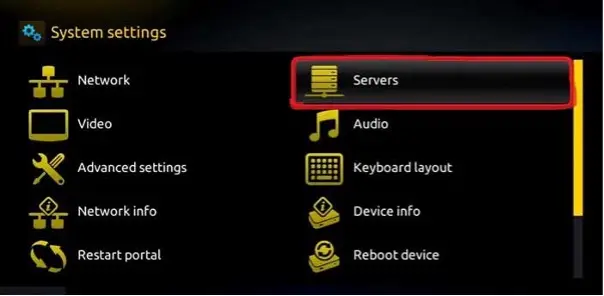
Now that your device is connected, open the settings to configure the IPTV portal.
- Press the SETUP or MENU button on your remote.
- Navigate to System Settings.
- Select Servers and then choose Portals.
Step 3: Enter the Portal Name and URL
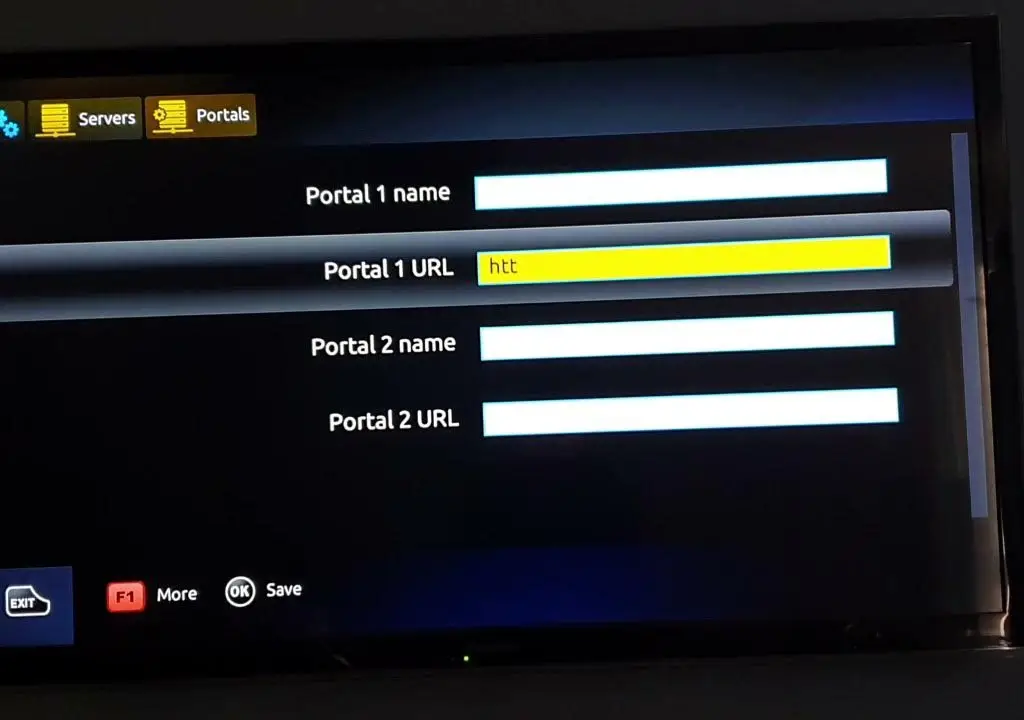
Here’s where you’ll connect your device to your IPTV provider.
- In the field labeled Portal 1 Name, type something like My IPTV.
- In Portal 1 URL, enter the IPTV portal link provided by your service provider.
- Make sure to enter it exactly as shown — even small typos can cause errors.
- Click OK or Save when done.
Step 4: Provide Your MAC Address (If Required)
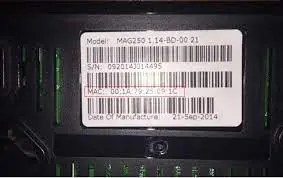
Most IPTV providers require your MAG Box’s MAC address to activate the service.
- Find your MAC address printed on a sticker on the back of your box or under System Information in settings.
- Send it to your IPTV provider for activation.
- Once your MAC address is linked to your subscription, your service will be ready.
Step 5: Configure Time Server (Optional)
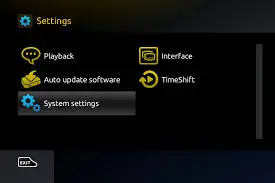
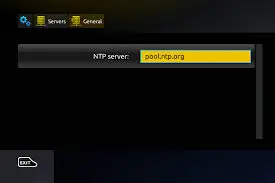
To make sure your EPG and streaming are synchronized, configure a Network Time Protocol (NTP) server.
- Go to Settings → System Settings → Servers → General.
- In the NTP Server field, enter:
pool.ntp.org. - Save and exit.
Step 6: Restart the Portal

Once you’ve added your portal and saved the configuration, restart your MAG box.
- Select Restart Portal from the menu.
- Alternatively, unplug and reconnect your device to reboot it.
- Your MAG or STB will now connect to your IPTV provider’s server and load your channels.
Step 7: Start Watching IPTV

That’s it! You’re ready to enjoy live channels, movies, and TV shows directly from your MAG or STB Box.
- Go to Live TV to browse channels.
- Access Movies or Series for on-demand content.
- Use your remote to switch easily between categories.
💡 Pro Tips
- Use a wired Ethernet connection for smooth streaming.
- If you see “STB Blocked” or “Portal not supported,” check your MAC activation and portal URL.
- Restart your router and MAG box if the portal fails to load.
- Use only legal, authorized IPTV services for reliability and safety.
That’s all! You’ve successfully set up IPTV on your MAG or STB box. Enjoy unlimited entertainment with a smooth, professional streaming experience.
Leave a Reply