



🎥 Install IPTV on Chromecast in 2025
Watching live TV through Chromecast has never been easier — especially with the rise of Internet Protocol Television (IPTV). Whether you’re using One IPTV, SmartersPro, or any other IPTV main service, you can stream your favorite shows, movies, and sports directly to your Chromecast in just a few minutes.
If you haven’t yet subscribed to a reliable IPTV provider, check out NixiHDR IPTV — a trusted platform offering fast, buffer-free streaming and 24/7 support.
📺 What Is IPTV and Why Chromecast?
Internet Protocol Television (IPTV) delivers TV content via the internet instead of traditional cable or satellite. This allows you to stream live TV, on-demand shows, and movies across any device — including your Chromecast-enabled TV.
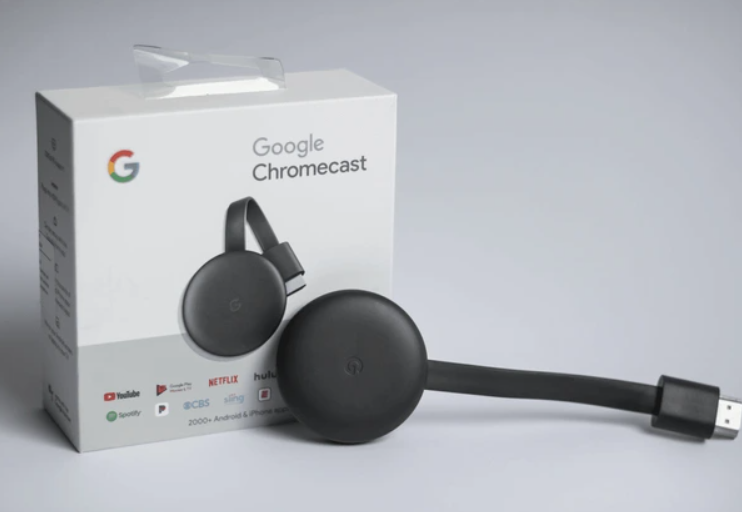
Chromecast by Google is a compact streaming device that lets you mirror or “cast” your favorite IPTV app from your smartphone or PC to the big screen. When combined with IPTV, it provides a flexible, high-quality, and affordable viewing experience.
🧩 What You’ll Need Before Installing IPTV on Chromecast
- A Chromecast device (Chromecast with Google TV or 3rd Gen)
- A stable internet connection (minimum 25 Mbps for HD streaming)
- An IPTV subscription from a reliable provider like NixiHDR IPTV
- A smartphone or computer with Chrome browser
- The SmartersPro or One IPTV app installed
⚙️ Method 1: Cast IPTV to Chromecast Using Smartphone
Step 1: Install IPTV SmartersPro or One IPTV
Go to the Google Play Store or Apple App Store, and download IPTV SmartersPro or One IPTV. These apps are compatible with most IPTV services and work seamlessly with Chromecast.
Step 2: Log In with Your IPTV Details
Once installed, open the app and log in using your IPTV credentials. If you’re using NixiHDR IPTV, simply enter your M3U URL or Xtream Codes API provided when you IPTV subscribe.
Step 3: Connect and Cast to Chromecast
Ensure your Chromecast and phone are connected to the same Wi-Fi network. Launch the IPTV app, play a channel, and tap the Cast icon. Choose your Chromecast device and enjoy IPTV on your TV instantly.
💻 Method 2: Watch IPTV on Chromecast Using PC
Step 1: Open Your IPTV Player in Chrome
If your IPTV provider offers a web player, open it in the Google Chrome browser. You can also use the One IPTV web version if available.
Step 2: Cast the Browser Tab
Click the three dots (⋮) in the top-right corner of Chrome → select Cast → and pick your Chromecast device. Your IPTV stream will now play on your TV screen.
🧠 Tips for the Best IPTV Streaming Experience
- Use a wired Ethernet connection whenever possible for smooth playback.
- Keep your IPTV main app updated for the latest performance improvements.
- If buffering occurs, restart your app or router to refresh the connection.
- Use a VPN for secure and unrestricted IPTV access.
- Subscribe to NixiHDR IPTV for reliable servers and full HD quality.
🔒 Why Choose a Trusted IPTV Provider?
Free IPTV links may seem tempting but often lead to unstable streams and privacy risks. Choosing a verified provider like NixiHDR IPTV ensures consistent uptime, top-quality channels, and excellent customer support.
When you IPTV subscribe to NixiHDR IPTV, you get:
- Access to 10,000+ live TV channels and VOD
- Support for Chromecast, Firestick, Smart TVs, and Android devices
- 24/7 customer support
- No hidden charges or buffering issues
🏁 Final Thoughts
Setting up Internet Protocol Television on Chromecast is one of the easiest ways to enjoy premium TV streaming at home. Apps like One IPTV and SmartersPro make the setup simple and fast — giving you access to thousands of live channels within minutes.
Ready to cut the cord? Visit NixiHDR IPTV today and start your IPTV journey with reliable servers, crystal-clear HD streams, and unmatched support.
Leave a Reply