


đź§  How to Setup IPTV on IPTV Smarters Pro

  • Home
  • Guide
  • đź§  How to Setup IPTV on IPTV Smarters Pro
DateOct 31, 2025

How to Setup IPTV on IPTV Smarters Pro

IPTV Smarters Pro is one of the most user-friendly IPTV applications available for Android, iOS, Firestick, Smart TV, and more. Follow these simple steps to set it up and start streaming your favourite live channels, movies, and shows.

Install IPTV Smarters Pro from app store

Step 1: Install the App

Open your device’s app store (Google Play, App Store, or use a sideload method on Firestick). Search for IPTV Smarters Pro and install it. The app is free to download — channels are added later via your IPTV provider’s credentials.

What to do: Open the store on your device → search “IPTV Smarters Pro” → tap Install. If you use FireStick and the app isn’t in the store, use a sideloading method such as Downloader.
IPTV Smarters Pro welcome and terms screen

Step 2: Launch & Accept Terms

Open the app for the first time. You’ll likely see a welcome screen or terms of use. Tap Accept (or Agree) to continue to the app’s main dashboard.

What to do: Launch the app, read the prompt, and accept the terms to proceed to the login/setup screen.


Step 3: Choose How You’ll Connect

Select the login option that your IPTV provider supports — either Load Playlist (M3U URL) or Login with Xtream Codes API. Xtream Codes is generally easier and will often auto-load categories and EPG.

What to do: On the setup screen pick M3U URL (paste your playlist) or Xtream Codes (enter server, username, password) depending on what your provider supplied.

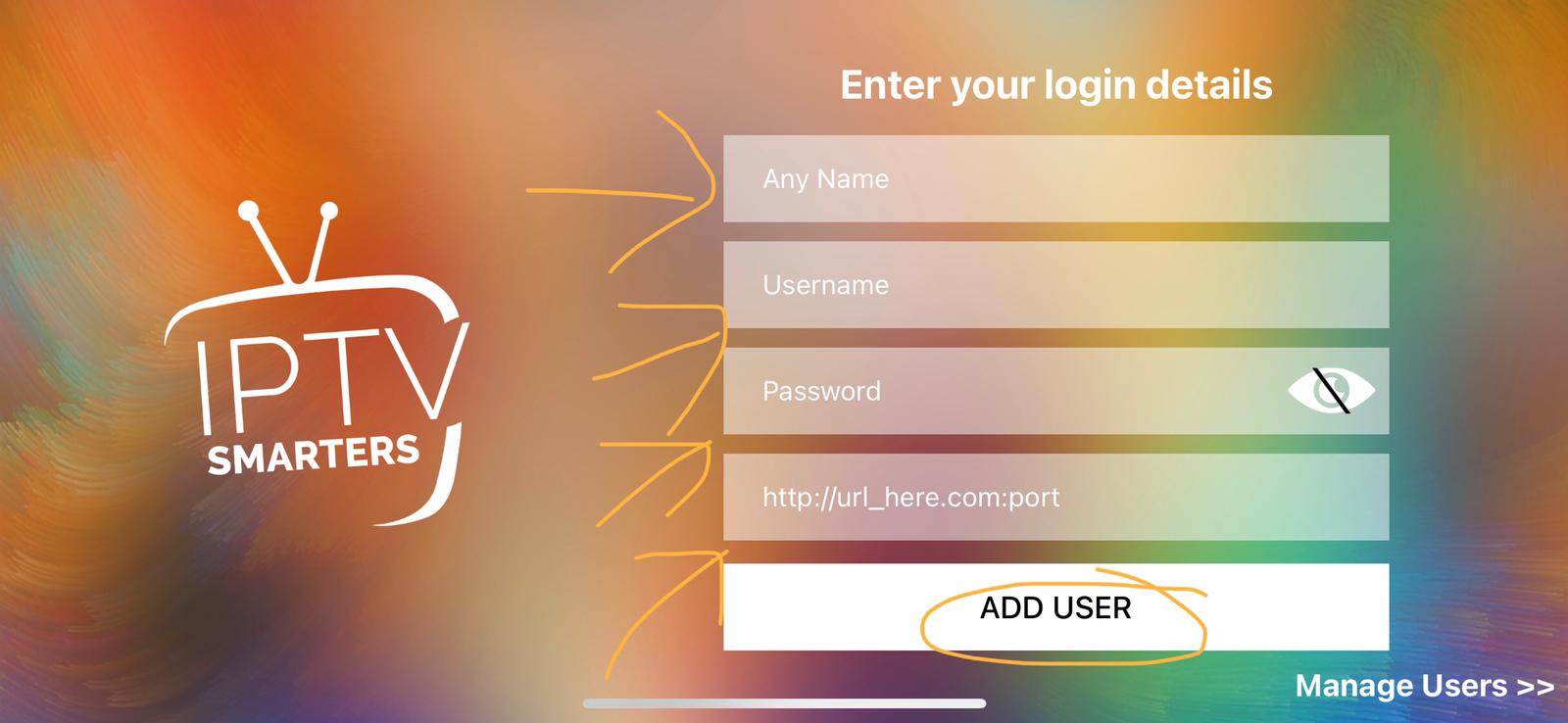
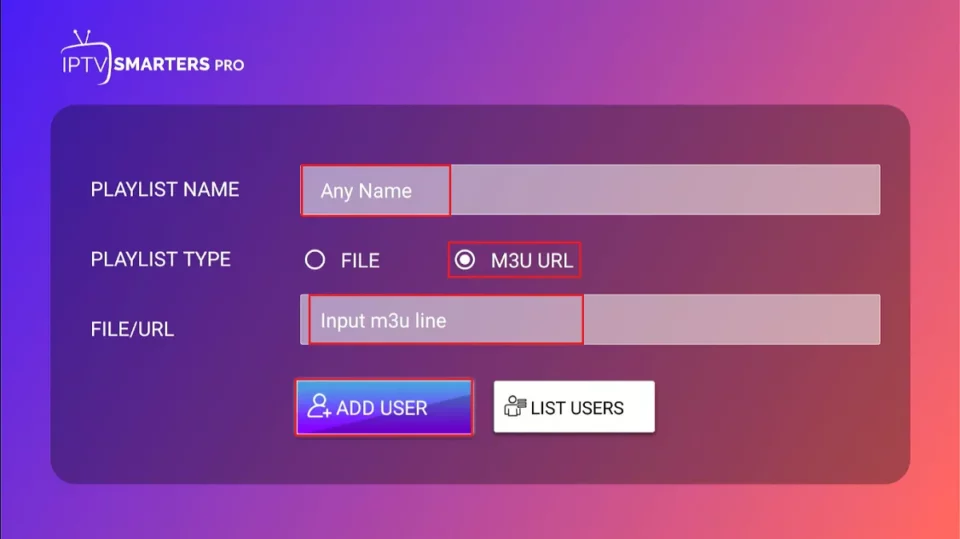
Add IPTV account details: name, username, password, url

Step 4: Enter IPTV Credentials

Fill in your IPTV account details: a friendly name (e.g. My TV), the username and password provided by your IPTV supplier, and the server or M3U playlist URL. Tap Add User or Login.

What to do: Paste the exact playlist URL or server address and enter credentials exactly as provided. Then choose Add User / Login to let the app import the channels.

IPTV Smarters loading channels and EPG

Step 5: Wait for Channels & EPG to Load

The app will fetch Live TV channels, Movies, Series, and the EPG (if your provider supplies it). Larger playlists may take a minute to fully load.

What to do: Be patient — wait for the channel list and guide to populate. If it stalls, check your credentials or internet connection.

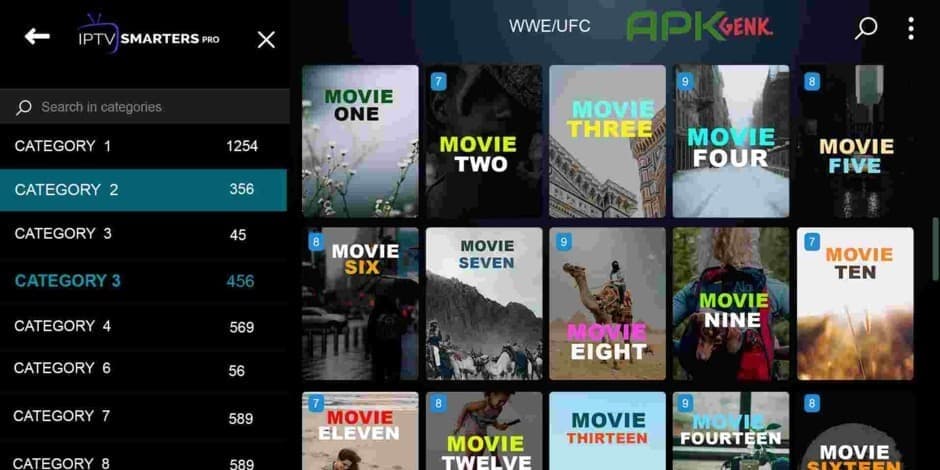
Browse live tv, movies, and series inside IPTV Smarters Pro

Step 6: Enjoy Your Streaming

Browse Live TV, Movies, Series, and Catch-Up sections (if available). You can add favourites, record, and switch profiles depending on the app version and features.

What to do: Navigate to Live TV to watch channels, visit Movies/Series for on-demand content, and mark favourites for quick access.

Leave a Reply

error: Content is protected !!