



Xtream Codes IPTV is one of the easiest ways to connect your IPTV account to a compatible player on Firestick, Android TV, Google TV, Smart TV, iPhone, iPad, Windows PC, and other supported devices. This 2026 guide shows you how to configure Xtream Codes API correctly on popular devices.
If you’re a NixiHD customer, you don’t need to manually create a complicated playlist URL. You can use the Xtream Codes login details supplied with your account: your username, password, and server URL.
This complete 2026 guide explains how to set up NixiHD using Xtream Codes API, how to enter your login details correctly, the difference between Xtream Codes and M3U, and what to do if your Xtream Codes login is not working.
Important: IPTV technology has legitimate uses. Users should ensure they have appropriate authorization to access the content they stream. This article explains player configuration and troubleshooting only.
What Is Xtream Codes IPTV and How Does It Work?
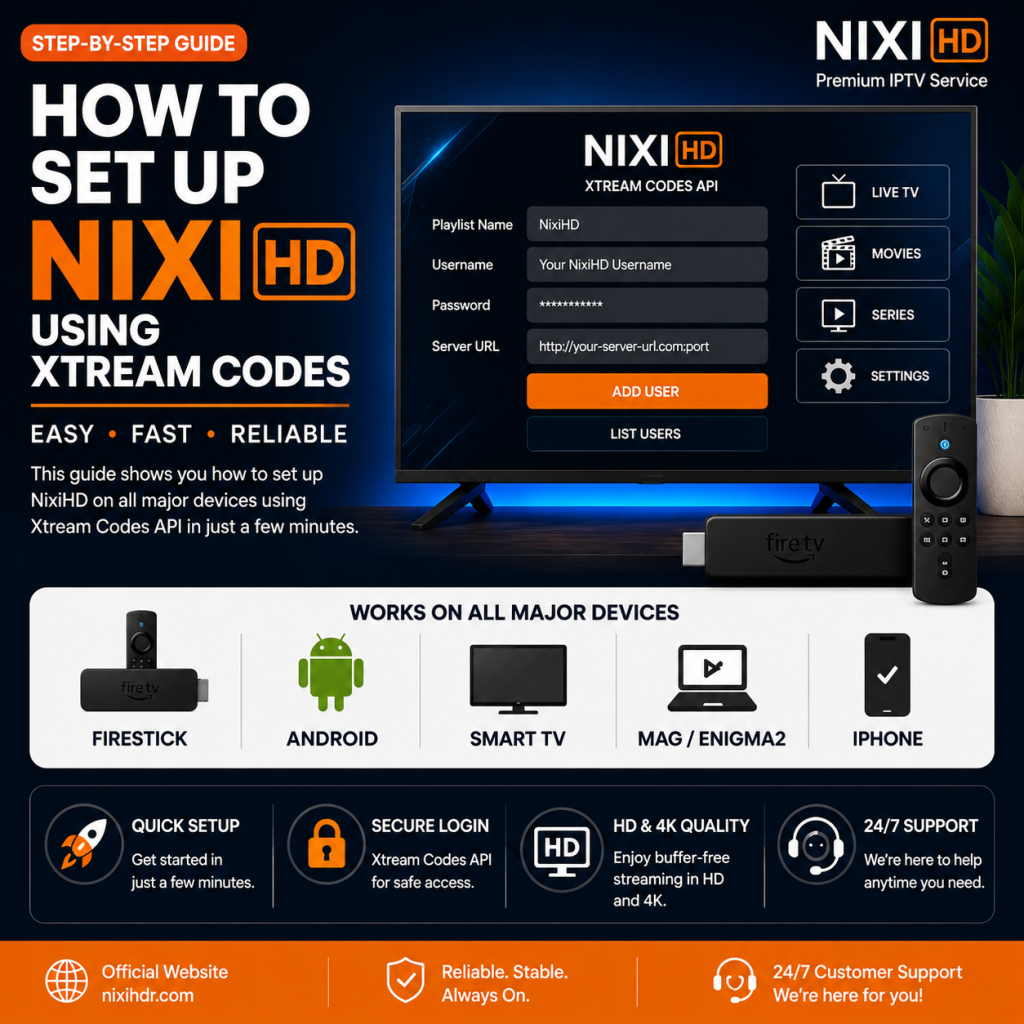
Xtream Codes API is a login method supported by many IPTV players.
For example, instead of manually entering a long M3U playlist URL, you can enter three main pieces of information:
- Server URL
- Username
- Password
The IPTV player uses these credentials to connect to the configured service and retrieve the information available to your account.
For NixiHD customers, the login format is:
Playlist Name: NixiHD
Username: Your NixiHD Username
Password: Your NixiHD Password
URL:https://thenewdns.co/
Your actual username and password are provided with your NixiHD account.
Never share your username or password publicly.
NixiHD Xtream Codes Login Details
Next, when setting up a compatible IPTV player, you may see fields for Playlist Name, Username, Password, and URL/Server Address.
Then, enter the following details:
| Setting | What to Enter |
|---|---|
| Playlist Name | NixiHD |
| Username | Your NixiHD Username |
| Password | Your NixiHD Password |
| URL / Server | https://thenewdns.co/ |
The Playlist Name is simply a name used to identify the account inside your IPTV player.
For security, your username and password are unique to your account. Enter both exactly as provided.
How to Set Up Xtream Codes IPTV with NixiHD
Although different IPTV players use slightly different menus, the basic NixiHD setup process is usually the same.
Step 1: Open Your IPTV Player
Open a compatible IPTV player on your device.
Depending on the application, look for an option such as:
Add User
Add Playlist
Add Profile
Xtream Codes
or
Login with Xtream Codes API
Step 2: Select Xtream Codes API
Select the Xtream Codes API or equivalent login option.
You should see fields for your playlist/profile name, username, password and server URL.
Step 3: Enter Your NixiHD Details
Enter:
Playlist Name: NixiHD
Username: Your NixiHD Username
Password: Your NixiHD Password
URL:https://thenewdns.co/
Make sure there are no extra spaces before or after your username or password.
Step 4: Select Add User or Login
Depending on the IPTV player, select:
Login, Add User, Add Playlist, Connect, or Save.
Step 5: Wait for Your Account to Load
The IPTV player will attempt to authenticate your credentials.
If the information has been entered correctly and the service is reachable, the player should load the categories and content available to your account.
How to Set Up Xtream Codes IPTV on Firestick
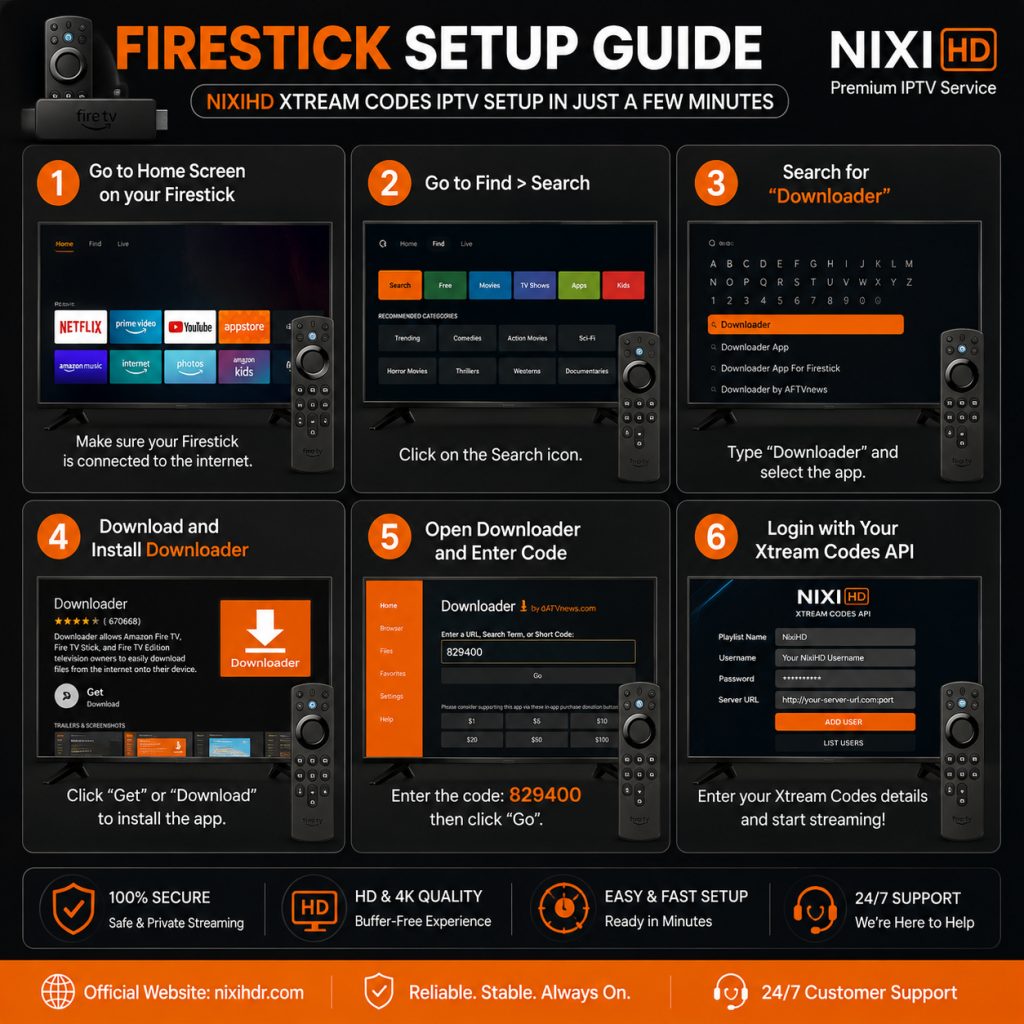
Amazon Fire TV Stick is a popular streaming device, and compatible IPTV/media players can support Xtream-style login credentials.
Step 1: Install a Compatible IPTV Player
Install a reputable compatible player that supports Xtream Codes API login.
Only install applications from sources you trust.
If you’re new to Fire TV, visit Amazon Fire TV Support for official help with Fire TV device settings and applications.
Step 2: Open the Player
Launch the IPTV player.
Look for:
Add User → Login with Xtream Codes API
The wording may differ depending on your player.
Step 3: Enter NixiHD Xtream Codes Details
Use:
Playlist Name: NixiHD
Username: Your NixiHD Username
Password: Your NixiHD Password
URL:https://thenewdns.co/
Step 4: Connect Your Account
Select Add User or Login.
Allow the application a moment to authenticate and load your account.
NixiHD Not Loading on Firestick?
First check:
- The username entered in the app
- The password for your account
- Your internet connection
- The server URL
- Your account status
- Whether your IPTV player is up to date
Also restart your Firestick and router before attempting more advanced troubleshooting.
How to Set Up Xtream Codes IPTV on Android TV & Google TV
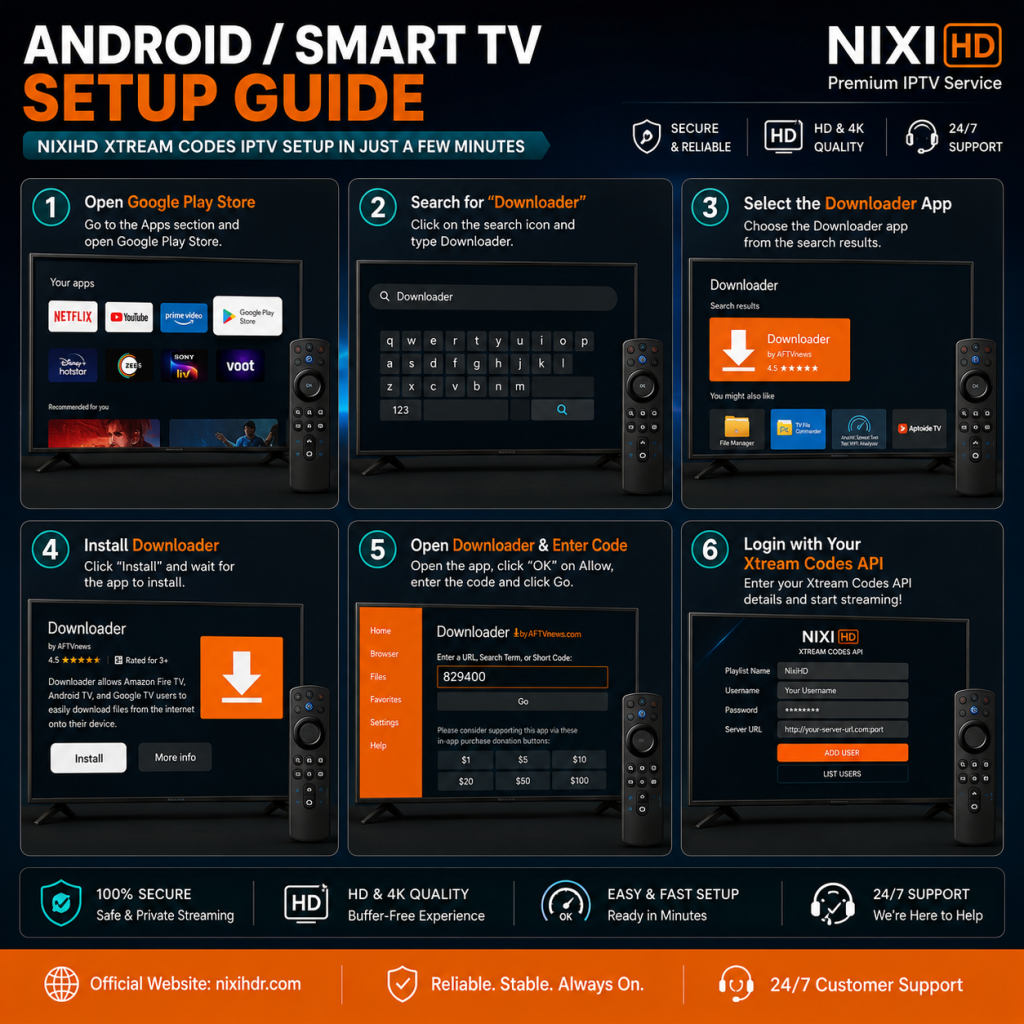
The setup process is similar on Android TV and Google TV devices.
Step 1: Install an IPTV Player
Open the Google Play Store and install a compatible IPTV/media player that supports Xtream Codes API.
Step 2: Open the Application
Launch the player and find its Add Playlist or Add User option.
Step 3: Choose Xtream Codes
Select:
Xtream Codes API
or the equivalent option provided by your application.
Step 4: Enter NixiHD Details
Enter:
Name: NixiHD
Username: Your NixiHD Username
Password: Your NixiHD Password
Server URL:https://thenewdns.co/
Step 5: Login
Select Login, Connect, or Add User.
Once authentication is complete, your account should load inside the player.
How to Set Up NixiHD on Samsung Smart TV
Samsung Smart TVs generally use Tizen OS, meaning their available apps can differ from Android TV.
Open the Apps section on your Samsung TV and find a compatible IPTV/media player that supports the login format supplied with your account.
After installation:
- Open the IPTV player.
- Select Add Playlist or Add User.
- Choose Xtream Codes API if available.
- Enter
NixiHDas the playlist name. - Enter your NixiHD username.
- Enter your NixiHD password.
- Enter
https://thenewdns.co/as the server URL. - Select Login or Connect.
If the application doesn’t provide an Xtream Codes option, check whether it supports another configuration format supplied by your service.
How to Set Up NixiHD on LG Smart TV
LG Smart TVs typically use webOS.
Open the LG app store and find a compatible media/IPTV player.
If the player supports Xtream-style login, enter:
Playlist: NixiHD
Username: Your NixiHD Username
Password: Your NixiHD Password
Server:https://thenewdns.co/
Save the account and allow the application to authenticate.
How to Set Up NixiHD on iPhone & iPad
You can also configure compatible IPTV players on an iPhone or iPad.
Step 1: Open the App Store
Open Apple’s App Store and find a compatible IPTV/media player.
Step 2: Select Xtream Codes Login
Launch the application and look for:
Add Playlist
Add Account
or
Xtream Codes API
Step 3: Enter Your NixiHD Login
Use:
Playlist Name: NixiHD
Username: Your NixiHD Username
Password: Your NixiHD Password
URL:https://thenewdns.co/
Select Login or Add User.
Your player should then attempt to connect to your account.
How to Set Up NixiHD Xtream Codes on Windows PC
Windows users can configure NixiHD with a compatible desktop IPTV/media player.
After installing a suitable player:
- Open the application.
- Select Add User or Add Playlist.
- Choose Xtream Codes API.
- Enter
NixiHDas the playlist name. - Enter your NixiHD username.
- Enter your NixiHD password.
- Enter
https://thenewdns.co/as the server URL. - Select Login.
If the login details are correct and the service is reachable, the account should load.
Xtream Codes IPTV vs M3U: What’s the Difference?
Both Xtream Codes API and M3U can be used by compatible IPTV players, but the way information is entered differs.
Xtream Codes API
Xtream Codes normally separates your credentials into individual fields:
- Server URL
- Username
- Password
This can make setup easier, particularly when entering information with a TV remote.
M3U Playlist
An M3U configuration usually involves a longer playlist URL.
Account information may be included as part of that URL.
Xtream Codes IPTV vs M3U: Which Is Easier?
For many beginners, Xtream Codes API is easier to configure because each piece of information is entered separately.
For example, NixiHD customers using an Xtream-compatible player only need to enter their username and password along with the provided server URL.
Xtream Codes IPTV Login Not Working? Try These Fixes
If your Xtream Codes login is not working, don’t immediately reinstall everything.
Start with these checks.
1. Check Your NixiHD Username
Your username must match the one supplied with your account.
Watch for:
- Extra spaces
- Missing letters or numbers
- Incorrect capitalization
- Confusing
Owith0 - Confusing
I,land1
Copy and paste your username when possible.
2. Check Your NixiHD Password
Enter the password exactly as supplied.
Passwords may be case-sensitive.
For example:
Password123
and
password123
may be treated as different passwords.
3. Check the NixiHD Server URL
For this configuration, enter:
Don’t accidentally enter:
http://thenewdns.co/
if your supplied configuration specifically requires HTTPS.
Also make sure you haven’t added spaces to the URL.
4. Check Your Internet Connection
Open another streaming application or website on the same device.
If nothing loads properly, your internet connection may be the problem rather than your Xtream Codes login.
Try restarting:
- Wi-Fi router
- Modem
- Smart TV
- Firestick
- Android TV box
- IPTV application
Then reconnect.
5. Check Whether Your Account Is Active
If NixiHD previously worked but suddenly stopped accepting your login, verify that your account is still active.
An expired or disabled account may no longer authenticate.
6. Update Your IPTV Player
An outdated IPTV player can sometimes cause compatibility or performance problems.
Check whether an updated version is available.
7. Try Another Compatible IPTV Player
If your account works in one application but not another, the problem may be related to the player rather than your credentials.
Testing another compatible player can help identify the cause.
NixiHD Connected but IPTV Is Buffering?
Successfully logging in and experiencing buffering are two different problems.
If you’re experiencing freezing or playback problems, read our IPTV Not Working and Buffering Fix Guide for additional troubleshooting steps.
If your login works but video playback keeps freezing, investigate the internet connection and device.
Check Your Internet Connection
Video streaming requires a stable connection.
Remember that stability matters as much as raw download speed.
A fast connection can still buffer when it suffers from:
- Wi-Fi interference
- Packet loss
- Network congestion
- Weak Wi-Fi signal
- Router problems
Use Ethernet If Possible
For Smart TVs, Android boxes and other devices with Ethernet support, a wired connection can provide more consistent performance than Wi-Fi.
Restart Your Router
Restart your router and wait for the internet connection to fully reconnect.
Then test playback again.
Move Closer to Your Wi-Fi Router
If you’re using Wi-Fi, a weak signal can cause buffering.
Try moving the streaming device or router closer together where practical.
Close Background Applications
Close unnecessary applications running on your Firestick, Android TV or other device.
This can free memory and system resources.
Clear Your IPTV Player Cache
On supported devices, clearing the IPTV application’s cache may resolve temporary performance issues.
Be careful with Clear Data, as this may delete your saved account configuration.
Why Does NixiHD Work on One Device but Not Another?
If your account works on one device but doesn’t work on another, your credentials may not necessarily be the problem.
Possible causes include:
- Incorrect login details on the second device
- Different IPTV player compatibility
- Weak Wi-Fi
- Outdated player
- Device software problems
- Network configuration
- Simultaneous connection restrictions
Compare the login information on both devices.
Both should use the correct username and password along with:
Can I Use My NixiHD Account on Multiple Devices?
You may be able to configure your login on more than one compatible device, but simultaneous connections depend on the account configuration you purchased or were assigned.
For example, an account allowing one simultaneous connection should not be expected to play concurrently on multiple devices.
Check the connection allowance associated with your account.
Is Xtream Codes an IPTV Player?
No.
This is a common misunderstanding.
Xtream Codes API is not an IPTV player.
An IPTV player is an application installed on your Firestick, Smart TV, Android device, iPhone, PC, or other supported device.
The Xtream-style credentials allow a compatible player to authenticate with a configured service.
Installing an IPTV player by itself does not provide television programming.
What Is an Xtream Codes URL?
An Xtream Codes URL, sometimes called a server URL, host URL or portal URL, tells the IPTV player which server it should contact.
For NixiHD’s configuration described in this guide, the server URL is:
Customers still need their individual NixiHD username and password to authenticate.
Where Can I Find My NixiHD Username and Password?
Your username and password are provided with your NixiHD account information.
Your details should follow this format:
Playlist Name: NixiHD
Username: Your NixiHD Username
Password: Your NixiHD Password
URL:https://thenewdns.co/
Never publish your real username and password on forums, social media, comments, or public support pages.
If you contact support, avoid posting credentials where other people can see them.
Is Xtream Codes IPTV Legal?
IPTV is a technology for delivering video using internet protocols.
The technology itself can be used for legitimate purposes.
The legality of a particular service or stream depends on the content being distributed, applicable licensing and authorization, and local laws.
Users should ensure they access content from sources that have appropriate rights or authorization to distribute it.
Frequently Asked Questions About NixiHD & Xtream Codes
What is the NixiHD Xtream Codes URL?
For the configuration covered by this guide, the NixiHD server URL is:
You’ll also need your individual username and password.
What should I enter for the playlist name?
Enter:
NixiHD
The playlist name is mainly used to identify the account inside your IPTV player.
Where do I get my NixiHD username and password?
Your username and password are supplied with your account.
Why isn’t my NixiHD Xtream Codes login working?
Check your username, password, server URL, internet connection and account status. Make sure no extra spaces were added when copying your credentials.
Can I use NixiHD Xtream Codes on Firestick?
A Firestick can run compatible media/IPTV players that support Xtream-style authentication.
Can I use Xtream Codes on Android TV?
Yes. Compatible Android TV and Google TV applications can support this login method.
Can I use Xtream Codes on Samsung Smart TV?
It depends on the applications currently available for your Samsung TV model and region. Look for a compatible player that supports the login method supplied with your account.
Can I use Xtream Codes on LG Smart TV?
Compatible LG webOS applications may support Xtream-style account configuration.
Can I use Xtream Codes on iPhone?
Yes, compatible IPTV/media players are available for iOS. Application availability and features can change, so check the current App Store listing before installing.
What is the difference between Xtream Codes and M3U?
Xtream-style login typically separates the server URL, username and password into different fields. An M3U configuration commonly uses a longer playlist URL.
Why does IPTV buffer even though my internet is fast?
Buffering can be caused by Wi-Fi interference, packet loss, network congestion, device performance, application problems, or problems with the remote service. A high speed-test result doesn’t guarantee consistently smooth streaming.
Do I need to enter the URL every time?
Normally, no. Once your IPTV player saves your profile, it should retain the configuration unless you remove the account, clear the application’s data, or reinstall the application.
Final Thoughts
Setting up NixiHD using Xtream Codes API takes only a few steps on most compatible devices.
Your basic configuration is:
Playlist Name: NixiHD
Username: Your NixiHD Username
Password: Your NixiHD Password
URL:https://thenewdns.co/
Open your compatible IPTV player, choose Xtream Codes API, enter the information above, and select Login or Add User.
If your login doesn’t work, double-check your username and password before changing other settings. If you can log in but playback buffers, troubleshoot your internet connection, Wi-Fi signal, device and IPTV player.
For additional help, read our IPTV Not Working / IPTV Buffering Fix Guide and our other device-specific IPTV setup tutorials.
Leave a Reply