



How to Install IPTV on Firestick: Complete Setup Guide for 2026
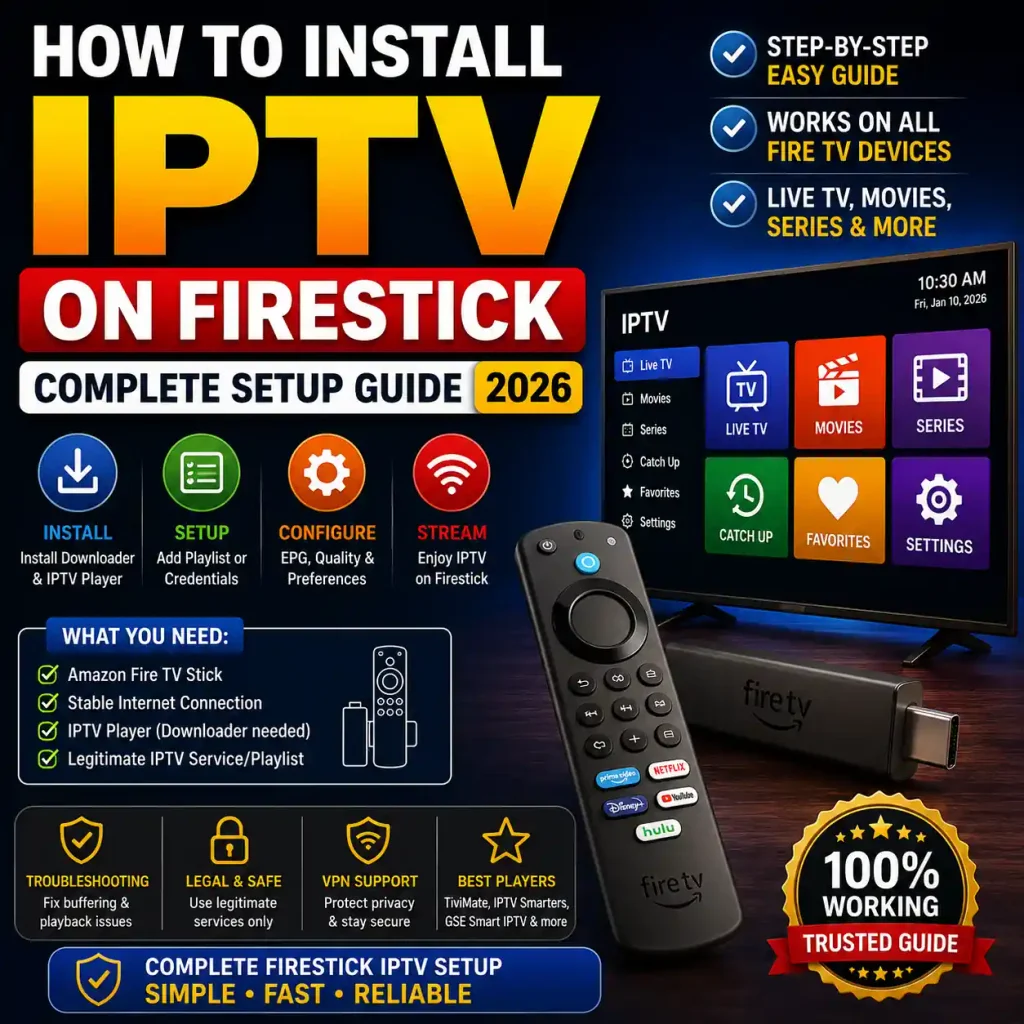
Want to watch IPTV on Firestick? This step-by-step guide explains how to prepare your Firestick, install an IPTV player, add your legitimate IPTV subscription, configure your settings, and troubleshoot common streaming problems.
Whether you’re completely new to IPTV or you’ve used an IPTV player before, the instructions below are designed to make the Firestick setup process simple and easy to follow.
Quick Answer: How to Install IPTV on Firestick?
To set up IPTV on a Firestick, you generally need to:
- Connect and update your Firestick.
- Enable the appropriate developer setting for installing apps outside the Amazon Appstore.
- Install the Downloader app from the Amazon Appstore.
- Install a compatible IPTV player from a trustworthy source.
- Enter the playlist, login credentials, or other details provided by your legitimate IPTV service.
- Configure your EPG, video quality, favorites, and playback settings.
- Test your streams and troubleshoot any buffering or playback problems.
The exact menu names can vary depending on your Fire TV software version.
What Is IPTV?
IPTV stands for Internet Protocol Television. Instead of delivering television programming through traditional cable or satellite infrastructure, IPTV delivers video content over an internet connection.
Depending on the service, IPTV can include live television, video-on-demand content, catch-up features, and electronic program guides (EPG). Because the content is delivered through the internet, users can access compatible services on devices such as Fire TV Sticks, smart TVs, computers, smartphones, and other supported streaming devices. If you also use Windows, see our IPTV setup guide for Windows.
One of the main advantages of IPTV is flexibility. However, the quality of your experience depends on several factors, including your internet connection, the IPTV player you use, your Firestick, and the quality and reliability of the service providing the content.
What You Need Before Installing IPTV on Firestick
Before beginning the installation, make sure you have the following:
- An Amazon Fire TV Stick or compatible Fire TV device.
- A television with an available HDMI port.
- A stable internet connection.
- Your IPTV player or application.
- A legitimate IPTV service or playlist that you are authorized to use.
- Your IPTV login details, M3U playlist, or other connection information if required by your provider.
A reliable internet connection is particularly important for HD and 4K streaming. Higher-quality video generally requires more bandwidth, and network congestion or weak Wi-Fi can contribute to buffering.
How to Configure IPTV on Firestick
1. Check for Firestick Software Updates
Before installing additional applications, it is a good idea to make sure your Firestick is running current software. You can also review Amazon’s current Fire TV update guidance for the latest device instructions.
On many Fire TV devices, you can check for updates by opening:
Settings → My Fire TV → About → Check for System Update
The exact wording may differ between Fire TV versions.
Keeping your Firestick updated can improve compatibility, security, and general device performance.
2. Enable Installation of Apps From Outside the Amazon Appstore
Some IPTV players may not be available directly through the Amazon Appstore. In those situations, Fire TV provides settings that allow supported applications to be installed from other sources.
Depending on your Fire TV version, look under:
Settings → My Fire TV → Developer Options
Amazon also documents Fire TV Developer Options and installation permissions, although the exact menu wording can vary by device and software version.
You may see an option such as Install Unknown Apps. If you are using Downloader, select Downloader and allow it to install applications when required.
Security tip: Only install APK files from sources you trust. Installing applications from unknown or unverified websites can expose your device and personal information to security risks.
How to Install Downloader on Firestick
Downloader is a commonly used utility for accessing files and applications on Fire TV devices. For the safest starting point, use the official Downloader page from AFTVnews rather than an unofficial APK mirror.
Step-by-Step Downloader Installation
- Open the Amazon Appstore on your Firestick.
- Select the search option.
- Search for Downloader.
- Select the official Downloader application from the results and verify that the developer is AFTVnews.
- Choose Download or Get.
- Wait for the installation to finish.
- Open Downloader.
Once Downloader is installed and the appropriate Firestick permissions are enabled, you can use it to access a compatible IPTV player’s installation source.
How to Install an IPTV Player on Firestick
An important distinction is worth understanding before continuing: an IPTV player is not necessarily the same thing as an IPTV content provider.
An IPTV player is an application used to display and play compatible streams or playlists. Your IPTV service may separately provide the channels, playlist, login information, or other credentials required by the player.
Popular IPTV player applications may include options such as IPTV Smarters and TiviMate, although availability and supported features can change over time.
Choose a Trusted Installation Source
If the IPTV player you want is not available through the Amazon Appstore, use the application’s official website or another source that you can verify as legitimate. Avoid third-party APK repositories when an official developer source is available.
Avoid downloading APK files from random websites simply because they offer a faster installation. Modified or unofficial APK files can contain unwanted software or security threats.
Install the IPTV Player With Downloader
- Open the Downloader application.
- Enter the verified URL supplied by the IPTV application’s official source.
- Download the appropriate installation file.
- Follow the Firestick installation prompts.
- Open the IPTV player after installation.
- Delete the installation file afterward if you no longer need it.
If Firestick displays a security or permission message, check that Downloader has been granted the required installation permission in your Fire TV settings.
How to Add Your IPTV Subscription
Once your IPTV player is installed, you normally need to connect it to the IPTV service you are authorized to use.
Depending on the player and service, you may be asked for information such as:
- Username and password
- M3U playlist URL
- Xtream Codes details
- EPG URL
- Other service-specific login information
Enter the information exactly as provided by your service. A single incorrect character in a username, password, playlist URL, or server address can prevent channels from loading.
Important: IPTV Player vs IPTV Provider
Installing an IPTV player does not automatically give you access to television channels.
The player is the software used to display compatible content. The content itself comes from the service or playlist that you connect to the player.
Always make sure that the IPTV service you use has the necessary rights or licenses to distribute the content you access.
How to Configure IPTV on Firestick
After connecting your IPTV service, spend a few minutes configuring the player. Proper configuration can make navigation easier and may help you get better playback performance.
Set Up Your Electronic Program Guide
An Electronic Program Guide, commonly called an EPG, shows information about current and upcoming programs when supported by your IPTV service and player.
If your provider supplies an EPG URL, enter it in the appropriate section of your IPTV application’s settings. The exact steps depend on the player you are using. If you use a different supported device, our STB and MAG IPTV setup guide covers portal and EPG configuration on those devices.
Organize Your Favorite Channels
If your IPTV player supports favorites, add frequently watched channels to your favorites list. This can make navigation much faster, particularly when your playlist contains a large number of channels.
Choose an Appropriate Video Quality
Higher resolution does not always mean better playback. If your internet connection or Wi-Fi signal is inconsistent, lowering the stream quality may reduce buffering.
If your connection is stable and your device and television support higher resolutions, you can use the quality supported by your service.
Configure Audio and Subtitle Options
Many IPTV players provide audio and subtitle settings. Check these options if you need to change an audio track, subtitle language, or other playback preferences.
How to Improve IPTV Streaming on Firestick
Several simple changes can help improve the overall streaming experience.
Use a Stable Internet Connection
Streaming performance depends heavily on your network connection. A speed test can help identify whether your internet connection is contributing to buffering.
Remember that advertised internet speed is not the only factor. Wi-Fi signal strength, network congestion, router performance, and the number of connected devices can also affect streaming.
Reduce Network Congestion
If multiple devices are downloading or streaming simultaneously, your Firestick may receive less available bandwidth.
Try pausing large downloads or unnecessary streams when watching high-quality video.
Consider Ethernet
If your Firestick setup supports a compatible Ethernet adapter, a wired connection can provide a more consistent network connection than Wi-Fi in some environments. For another device setup that emphasizes wired connectivity, see our Formuler IPTV setup guide.
Restart Your Firestick and Router
A simple restart can sometimes resolve temporary network or application problems.
Restart both your Firestick and router if you are experiencing sudden buffering, connection failures, or applications that stop responding.
How to Fix IPTV Buffering on Firestick
Buffering is one of the most common problems people encounter when streaming IPTV.
1. Test Your Internet Connection
Start by checking your connection speed and stability. If other devices are also experiencing slow internet performance, the issue may be with your network rather than the IPTV player.
2. Restart Your Router
Power cycling your router can resolve temporary connection problems.
3. Move the Firestick Closer to the Router
If you are using Wi-Fi, distance and physical obstacles can weaken the signal. Improving the Firestick’s connection to the router may improve playback stability.
4. Lower Streaming Quality
If high-resolution streams continually buffer, try a lower-quality stream where available. This reduces the amount of data that needs to be transferred continuously.
5. Check the IPTV Service
If only certain channels are buffering while other internet services work normally, the problem may be related to the source stream or IPTV service.
Check whether the provider has reported an outage or service problem.
6. Check Your IPTV Credentials
If channels disappear or fail to load, verify your M3U URL, username, password, or Xtream Codes information. Incorrect or expired credentials can prevent your playlist from loading correctly.
IPTV Not Working on Firestick? Try These Fixes
If your IPTV application opens but does not work correctly, work through the following checklist:
- Restart the Firestick.
- Restart your router.
- Check your internet connection.
- Confirm that your IPTV credentials are correct.
- Refresh your playlist.
- Check whether the IPTV application needs an update.
- Clear the application’s cache if the option is available.
- Reinstall the application if necessary.
- Check whether the IPTV service itself is experiencing an outage.
Common IPTV Problems on Firestick
| ProblemPossible CauseWhat to Try | ||
|---|---|---|
| Buffering | Weak or congested connection | Restart router, improve Wi-Fi, reduce stream quality |
| Channels not loading | Playlist or provider problem | Refresh playlist and verify credentials |
| EPG not showing | Incorrect or unavailable EPG information | Check the EPG settings supplied by your provider |
| App crashes | Cache, software, or installation problem | Clear cache, update, or reinstall the app |
| Installation fails | Permission or incompatible APK | Check Downloader permissions and installation source |
Is IPTV Legal on Firestick?
IPTV is a technology for delivering television and video content over the internet. The legality of a particular IPTV service depends on the content being distributed and whether the provider has the necessary rights or licenses.
Using a Firestick to access a legitimate, authorized streaming or IPTV service is different from accessing copyrighted television channels or other content through an unauthorized provider.
Before subscribing to an IPTV service, check that the provider is authorized to distribute the content it offers.
Using an IPTV player does not by itself determine whether the content being accessed is legal. The source of the content and the rights associated with its distribution matter.
Do You Need a VPN for IPTV on Firestick?
A VPN, or Virtual Private Network, can encrypt traffic between your device and the VPN server and can change the IP address visible to websites and online services.
Some users choose a VPN for privacy or security reasons when using internet-based streaming services. However, a VPN does not automatically make an unauthorized IPTV service legal, and it should not be treated as a substitute for using a legitimate content provider.
If you choose to use a VPN, select a reputable provider, review its privacy policy, and understand how it affects your connection speed.
Best IPTV Players for Firestick
There are several IPTV player applications that users may consider for Firestick. The best option depends on the features you need and whether the application supports your IPTV service’s connection method.
| IPTV PlayerWhat to Consider | |
|---|---|
| IPTV Smarters | User-friendly interface and support for common IPTV connection methods. |
| TiviMate | Designed around IPTV playlists and provides an interface focused on television-style navigation. |
| GSE Smart IPTV | Offers a range of IPTV-related playback and playlist features. |
Availability, pricing, supported devices, and features can change. Always check the current information from the application’s official source before installing or purchasing anything.
How to Get the Best IPTV Experience on Firestick
Once everything is working, a few small adjustments can make your setup easier to use.
- Keep your Firestick software updated.
- Keep your IPTV player updated when updates are available.
- Use a stable internet connection.
- Organize frequently watched channels into favorites.
- Configure the EPG if your service provides one.
- Use appropriate video quality for your connection.
- Remove applications you no longer use to keep your device organized.
- Only install applications from sources you trust.
Final Firestick IPTV Setup Checklist
Before you start streaming, use this quick checklist:
- Firestick is connected correctly to your television.
- Firestick software is up to date.
- Downloader is installed if required.
- The IPTV player is installed from a trustworthy source.
- Your legitimate IPTV credentials or playlist have been entered correctly.
- EPG information has been configured if available.
- Your internet connection is stable.
- Video quality is appropriate for your connection.
- Favorite channels have been organized.
- Your IPTV service is authorized to distribute the content you access.
Frequently Asked Questions
What is IPTV on Firestick?
IPTV on Firestick refers to using an IPTV-compatible application on an Amazon Fire TV device to play television or video streams delivered through an internet connection.
Can I install an IPTV player directly on Firestick?
Some IPTV applications may be available through the Amazon Appstore, while others may require installation through another supported method. Availability can change, so check the current source for the application you want to use.
Do I need an IPTV subscription to use an IPTV player?
An IPTV player generally does not provide television channels by itself. You normally need a compatible playlist, credentials, or service from an authorized IPTV provider.
Why does IPTV keep buffering on my Firestick?
Buffering can be caused by an unstable internet connection, Wi-Fi interference, network congestion, problems with the source stream, or other device and application issues. Start by testing your connection and restarting your router and Firestick.
How can I stop IPTV buffering on Firestick?
Try improving your Wi-Fi connection, reducing network congestion, restarting your router, lowering stream quality, and checking whether the IPTV service is experiencing problems.
Why are some IPTV channels not loading?
Possible causes include an incorrect playlist, expired credentials, unavailable source streams, or a problem with the IPTV service. Verify your login information and refresh the playlist.
What is an EPG in IPTV?
EPG stands for Electronic Program Guide. When supported by your IPTV service, it provides information about current and upcoming programs.
Is IPTV legal on Firestick?
IPTV technology itself is simply a method of delivering video over the internet. The legality of a particular service depends on whether it has the appropriate rights to distribute the content it provides.
Does a VPN make IPTV legal?
No. A VPN can provide privacy and encrypt your connection, but it does not give an IPTV provider permission to distribute copyrighted content. Use IPTV services that are authorized to distribute the content they offer.
What internet speed do I need for IPTV?
The amount of bandwidth required depends on the resolution and bitrate of the stream, as well as your network conditions. HD and 4K streams generally require more bandwidth than SD streams. A stable connection is just as important as the advertised download speed.
Related IPTV Setup Guides
- How to Set Up IPTV on Smart Android TV
- How to Set Up IPTV on Windows PC
- How to Set Up IPTV on STB and MAG Box
- How to Set Up IPTV on Formuler Box
- How to Install and Configure IPTV with Sky Glass
Final Thoughts
Setting up IPTV on a Firestick doesn’t have to be complicated. Once your Firestick is updated, the necessary installation permissions are configured, and a compatible IPTV player is installed, you can connect your authorized IPTV service and customize the player to suit your viewing preferences.
If you experience problems, start with the basics: check your internet connection, restart your Firestick and router, verify your IPTV credentials, and check whether the service itself is experiencing an outage. Amazon also recommends checking the Fire TV software version and restarting the device when streaming problems occur.
For the best experience, keep your Firestick and IPTV applications updated, use trustworthy software sources, and make sure the IPTV service you use has the appropriate rights to distribute its content.
For more IPTV, Firestick, streaming, and troubleshooting guides, explore the other resources available on NixiHD.
Leave a Reply