



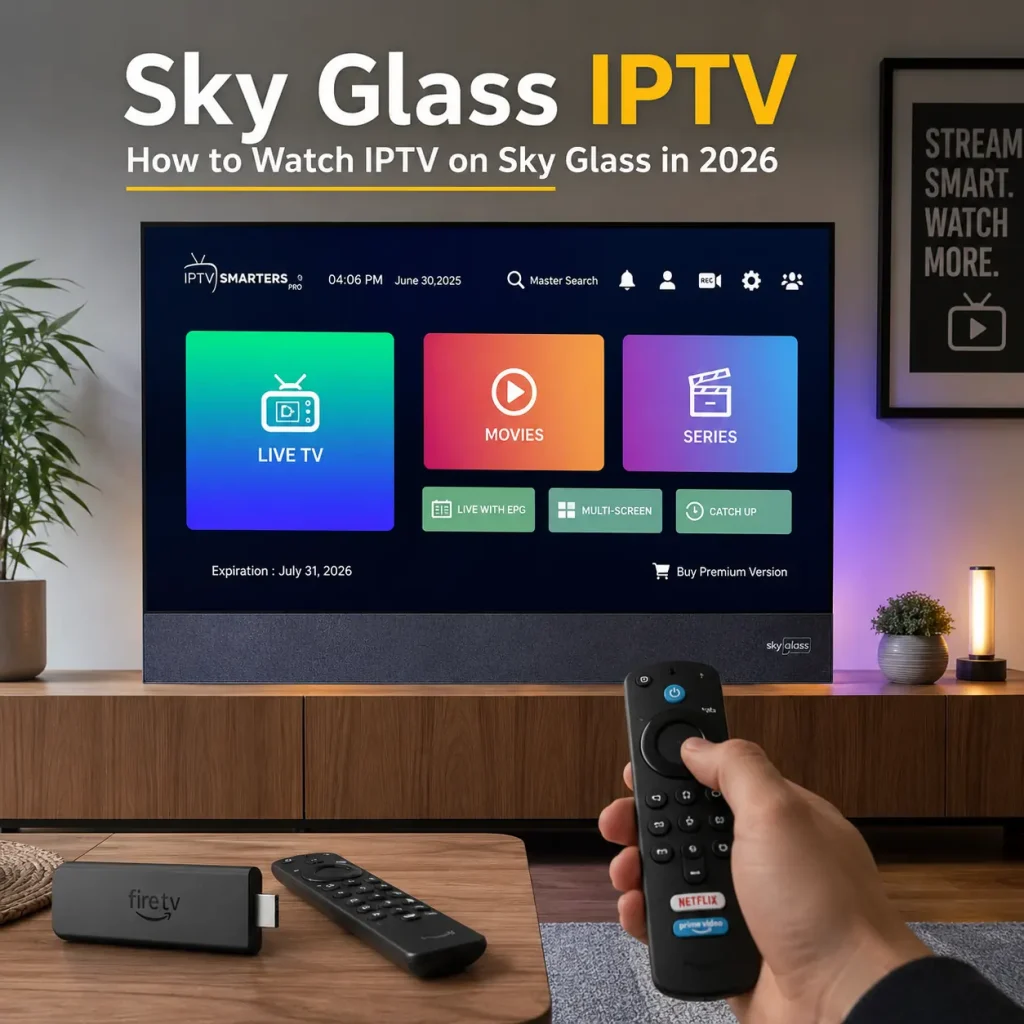
If you own a Sky Glass TV and have been searching for Sky Glass IPTV, you have probably noticed that setting up IPTV on Sky Glass is a little different from installing IPTV on a normal Android TV box.
The good news is that you do not need to replace your Sky Glass just because you want to use an IPTV service. With the right external streaming device, you can use IPTV on Sky Glass while keeping the TV you already own.
In this guide, we will explain how Sky Glass IPTV works, which devices you can use, how to connect everything, how to enter your IPTV login details and what to check if your IPTV setup does not work properly.
Can You Use IPTV on Sky Glass?
Yes, you can use IPTV on Sky Glass, but there is an important difference between using IPTV with the television and installing an IPTV application directly onto the TV.
Sky Glass is not an open Android TV box where you can simply download any APK file and install it. This is why searches for a Sky Glass IPTV APK can sometimes lead to confusing installation guides that are not actually suitable for Sky Glass.
The easier approach is to connect a compatible streaming device to the TV using HDMI and run your IPTV player from that device.
Sky’s own support information confirms that Sky Glass has HDMI ports and that other devices can be connected using HDMI. You can see Sky’s official guide to connecting other devices to Sky Glass for the current connection information.
So, rather than trying to force an IPTV application into the Sky Glass operating system, you can let another compatible device handle the IPTV application while Sky Glass remains your main screen.
How Does Sky Glass IPTV Actually Work?
The easiest way to understand a Sky Glass IPTV setup is to think of it as four separate parts.
- Sky Glass: Your television and display.
- Streaming device: Runs the IPTV player.
- IPTV player: Connects to your IPTV service.
- IPTV provider: Supplies your subscription and login details.
Once the streaming device is connected to your Sky Glass through HDMI, the IPTV application runs on that external device. The picture is then displayed on your Sky Glass.
This makes IPTV for Sky Glass much easier to understand. The television itself does not have to run the IPTV application.
What Do You Need for Sky Glass IPTV?
You do not need an expensive or complicated setup to get Sky Glass IPTV working. In most cases, you need:
- A Sky Glass television.
- A compatible external streaming device.
- A compatible IPTV player.
- A reliable internet connection.
- An active IPTV subscription.
If you already own a Fire TV Stick, Apple TV or compatible Android TV device, check that device before buying anything else. You may already have everything required for your IPTV on Sky Glass setup.
Which Streaming Device Is Best for IPTV on Sky Glass?
There is no single device that everyone needs for Sky Glass IPTV. The best option depends on the equipment you already own and which IPTV player you want to use.
Fire TV Stick
A Fire TV Stick is a convenient option if you want a separate device to handle your IPTV applications. Connect the Fire TV Stick to your Sky Glass using HDMI and complete the normal Fire TV setup.
You can then install an IPTV player that supports your device and enter the credentials supplied by your IPTV provider.
The main advantage is simple: the IPTV application runs on the Fire TV Stick rather than trying to run directly on your Sky Glass.
If you are also setting up IPTV on other Android-based devices, our IPTV Smart Android TV setup guide explains the IPTV player and Xtream Codes login process in more detail.
Apple TV
Apple TV is another good option for a Sky Glass IPTV setup, particularly if you already use Apple devices.
Connect Apple TV to an HDMI port on your Sky Glass and install a compatible IPTV player through the Apple TV App Store.
Smarters Pro currently lists Apple TV as a supported platform, along with Android TV and other devices. You can check the official Smarters Pro website for its current supported platforms and application information.
Android TV Device
Android TV devices are another popular choice for IPTV on Sky Glass because they support a wide range of IPTV players.
If you already own an Android TV box or television device, check its supported applications before purchasing additional hardware.
You can also see our Smart Android TV IPTV setup guide if you want to see how an IPTV player is configured on Android TV.
Can You Use IPTV Smarters on Sky Glass?
Can you use IPTV Smarters with Sky Glass? This is one of the most common questions people ask when looking for Sky Glass IPTV.
The important thing to understand is that the IPTV player and the television do not have to be the same device.
Instead of trying to install IPTV Smarters directly on Sky Glass, you can install a compatible IPTV player on an external device such as Fire TV Stick, Apple TV or Android TV.
Smarters Pro currently lists Android TV and Apple TV among its supported platforms and provides installation information for Fire TV Stick. Its official site also makes clear that the player itself does not provide IPTV subscriptions or television content.
That means your IPTV subscription comes from your IPTV provider, while the IPTV player is simply the application used to access your service.
Sky Glass IPTV Setup: Step-by-Step
Step 1: Check Your Existing Streaming Device
Before spending money on another device, check what you already have at home.
A Fire TV Stick, Apple TV or Android TV device may already be suitable for your Sky Glass IPTV setup.
Step 2: Connect the Device to Sky Glass
Connect your streaming device to an available HDMI port on your Sky Glass.
Sky currently lists three HDMI ports on Sky Glass, so there is normally no need for a complicated connection setup.
For the most up-to-date connection information, you can check Sky’s official Sky Glass FAQ .
Step 3: Connect the Device to the Internet
Complete the normal setup of your streaming device and connect it to your home internet.
For IPTV on Sky Glass, a stable connection is often more important than simply having the biggest advertised download speed.
If you experience buffering after your Sky Glass IPTV setup is complete, check your Wi-Fi signal, router and streaming device before assuming that the IPTV service itself is the problem.
Step 4: Install Your IPTV Player
Install an IPTV player that is compatible with your streaming device using the appropriate official app store or supported installation method.
If you want to use Smarters Pro, check its official website for the latest platform information rather than downloading an unknown APK from a random website.
Step 5: Enter Your IPTV Credentials
Once your IPTV player is installed, enter the login information provided by your IPTV service.
Depending on your service and player, you may be asked for:
- Server URL
- Username
- Password
If your provider uses Xtream Codes, select the Xtream Codes or Xtream API login option when it is available in your IPTV player.
Take your time when entering the information. One incorrect character in the server URL or password can prevent your Sky Glass IPTV setup from connecting.
Step 6: Let the Channels Load
Once the login has been accepted, allow the IPTV player to finish loading your content.
Depending on your IPTV service, you may see Live TV, Movies, Series, Catch-Up and an electronic programme guide.
Your Sky Glass is now being used as the display while the external streaming device handles the IPTV application.
Why Is My Sky Glass IPTV Not Working?
If your Sky Glass IPTV setup is connected but the player will not work, do not immediately assume that your television is the problem.
There are several simple things worth checking first.
Check Your Internet
Make sure the streaming device is connected to the internet. Try opening another streaming application to confirm that the connection is working.
Check Your IPTV Login
Recheck the server URL, username and password supplied by your IPTV provider.
Check the IPTV Player
Make sure the IPTV player you installed is actually supported on your Fire TV Stick, Apple TV or Android TV device.
Restart the Streaming Device
Restarting the streaming device can resolve temporary application or network problems.
Check Your IPTV Subscription
If the player is installed correctly but your account still will not connect, ask your IPTV provider to confirm that your subscription and login credentials are active.
Do You Need to Replace Your Sky Glass?
No.
If your Sky Glass is working properly, there is generally no reason to replace it simply because you want to use IPTV.
An external streaming device can provide the application environment needed for Sky Glass IPTV while allowing your existing television to remain the main display.
This is one of the biggest advantages of using an external device for IPTV on Sky Glass. You can change or upgrade the streaming device later without replacing the television itself.
How to Choose an IPTV Subscription for Sky Glass
Once you know which device you are going to use, choosing an IPTV subscription becomes much easier.
The important thing is to make sure the service provides login details compatible with the IPTV player you intend to use.
If you are not sure whether your Fire TV Stick, Android TV device or Apple TV will work with the service, ask before ordering.
At NixiHDR, we also provide setup help for customers who need assistance getting their IPTV service working on compatible devices.
Ready to Use IPTV on Sky Glass?
If you already own a Sky Glass, you do not need to make your IPTV setup complicated.
Connect a compatible streaming device, install a suitable IPTV player and enter the credentials supplied with your IPTV subscription.
If you are looking for an IPTV subscription for your Sky Glass IPTV setup, take a look at our available plans.
Not sure which setup you need? Contact NixiHDR support and tell us which streaming device you have. We can help you work out the correct setup before you order.
Sky Glass IPTV FAQs
Can I use IPTV on Sky Glass?
Yes. The easiest Sky Glass IPTV setup is normally to connect a compatible external streaming device through HDMI and run the IPTV player on that device.
Can I install a Sky Glass IPTV APK directly on the TV?
Sky Glass is not a standard Android TV platform designed for freely installing APK files. An external streaming device is normally the easier solution for IPTV on Sky Glass.
Can I use IPTV Smarters with Sky Glass?
Yes, provided the IPTV player is supported by the external streaming device you are using. The IPTV player runs on the external device rather than directly on the Sky Glass operating system.
Can I use Xtream Codes with Sky Glass IPTV?
Yes. If your IPTV provider supports Xtream Codes and your IPTV player supports that login method, you can enter the server URL, username and password on your compatible streaming device.
What is the easiest Sky Glass IPTV setup?
Connect a compatible Fire TV Stick, Apple TV or Android TV device to Sky Glass using HDMI, install a supported IPTV player and enter the login details supplied by your IPTV provider.
Do I need a new TV for IPTV?
No. Your existing Sky Glass can remain your main television while an external streaming device handles the IPTV application.
Final Thoughts on Sky Glass IPTV
The easiest way to think about Sky Glass IPTV is that your television does not need to run the IPTV application itself.
Your Sky Glass remains the screen, while a compatible streaming device runs the IPTV player and connects to your IPTV subscription.
If you already have a Fire TV Stick, Apple TV or Android TV device, check that device first. You may already have everything required to get IPTV on Sky Glass.
If you are looking for an IPTV subscription for your Sky Glass setup, make sure you know which device and IPTV player you are going to use before ordering.
Important: IPTV players are software applications and do not themselves provide television channels or subscriptions. Always use IPTV services and content that you are legally entitled to access in your location.
Leave a Reply