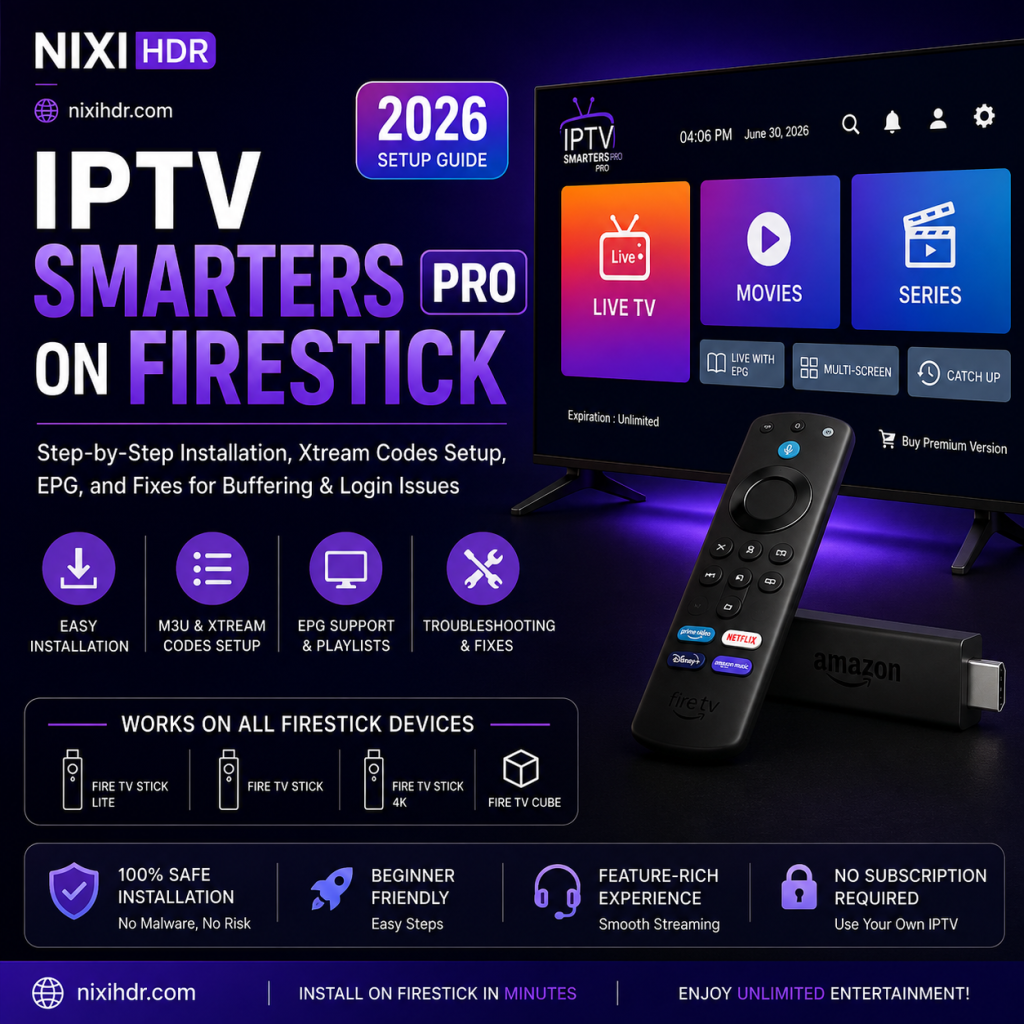
Looking to install IPTV Smarters Pro on Firestick in 2026? This step-by-step NIXIHDR guide walks you through the complete setup process, from installing the IPTV player to signing in with Xtream Codes API or an M3U playlist.
We’ll also cover EPG setup, common login problems, buffering fixes, and practical Firestick settings that can improve your streaming experience.
Important: IPTV Smarters Pro is an IPTV player. It does not provide TV channels, movies, or subscriptions by itself. You need valid login or playlist details from an IPTV service you are authorized to use.
What Is IPTV Smarters Pro?
IPTV Smarters Pro is a popular IPTV player that lets you access live TV, movies, series, and other content using login credentials supplied by your IPTV service.
The app itself does not host or provide IPTV channels. Instead, it acts as a player for compatible services and commonly supports login methods such as Xtream Codes API and M3U playlists.
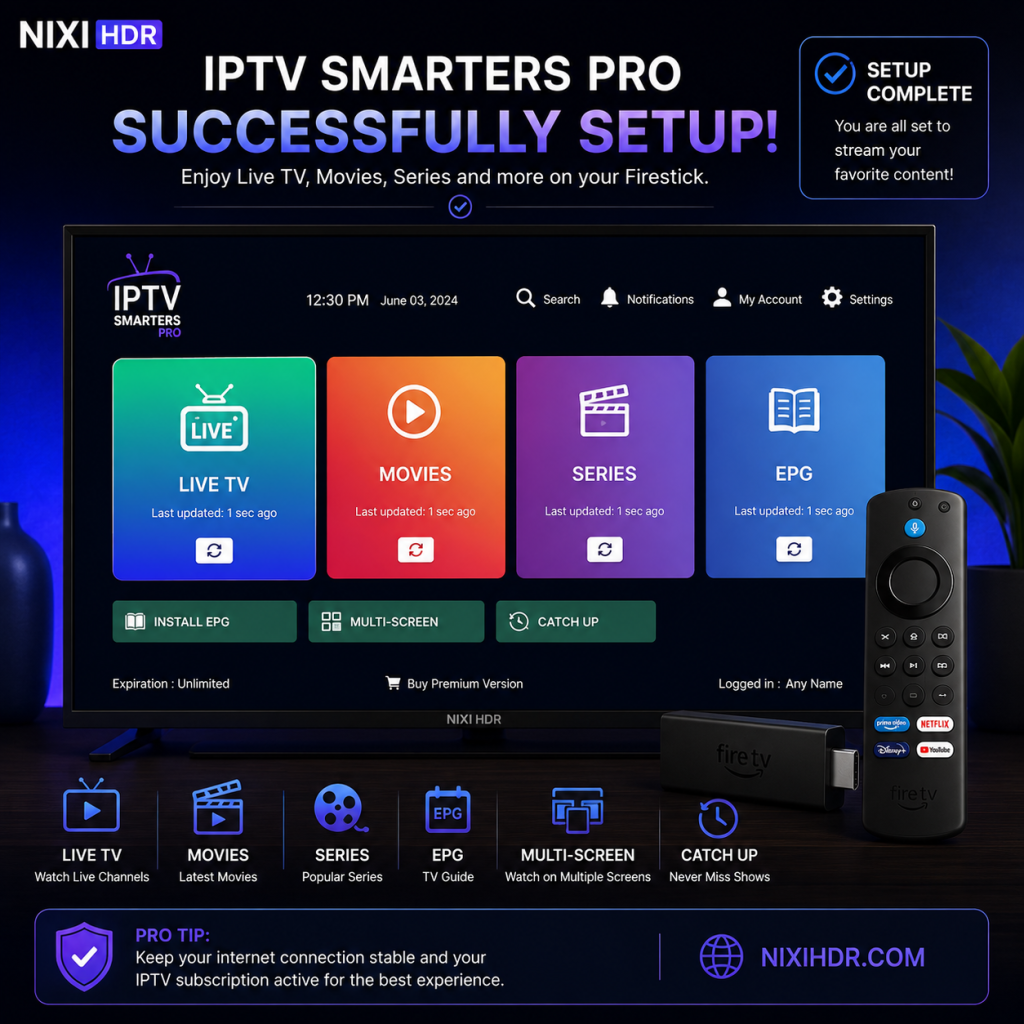
IPTV Smarters Pro works well on Amazon Fire TV devices. You can control the app with your Firestick remote. Features may include Live TV, Movies, Series, EPG, favorites, search, and user profiles.
NIXIHDR Tip: Before starting the installation, keep your IPTV username, password, and server/portal URL ready. Entering even one character incorrectly can cause login or authorization errors.
Does IPTV Smarters Pro Work on Firestick?
Yes. IPTV Smarters Pro works on Amazon Fire TV devices, including Fire TV Stick models. The app may not appear in every region. If it is unavailable in the Amazon Appstore, you may need to install it manually.
Additionally, the Firestick is particularly suitable for IPTV because it connects directly to your TV, supports Wi-Fi streaming, and can run IPTV players with a remote-friendly interface.
For the best experience, make sure your Firestick has enough free storage space and is connected to a stable internet connection before beginning the installation.
How to Install IPTV Smarters Pro on Firestick in 2026
Installation takes only a few minutes. First, check the Amazon Appstore for IPTV Smarters Pro. If you find it, install it directly. If not, you may need to use the Fire TV installation options described below.
Before installing any app outside the Amazon Appstore, make sure you trust the source and that the app is permitted in your location.
Step 1: Install the Downloader App on Firestick
From the Firestick home screen, select Find > Search and search for Downloader. Select the Downloader app and install it on your Fire TV device.
Next, once installation is complete, open Downloader. If Fire TV asks for permission to access files or other device features, review the request and continue as appropriate.
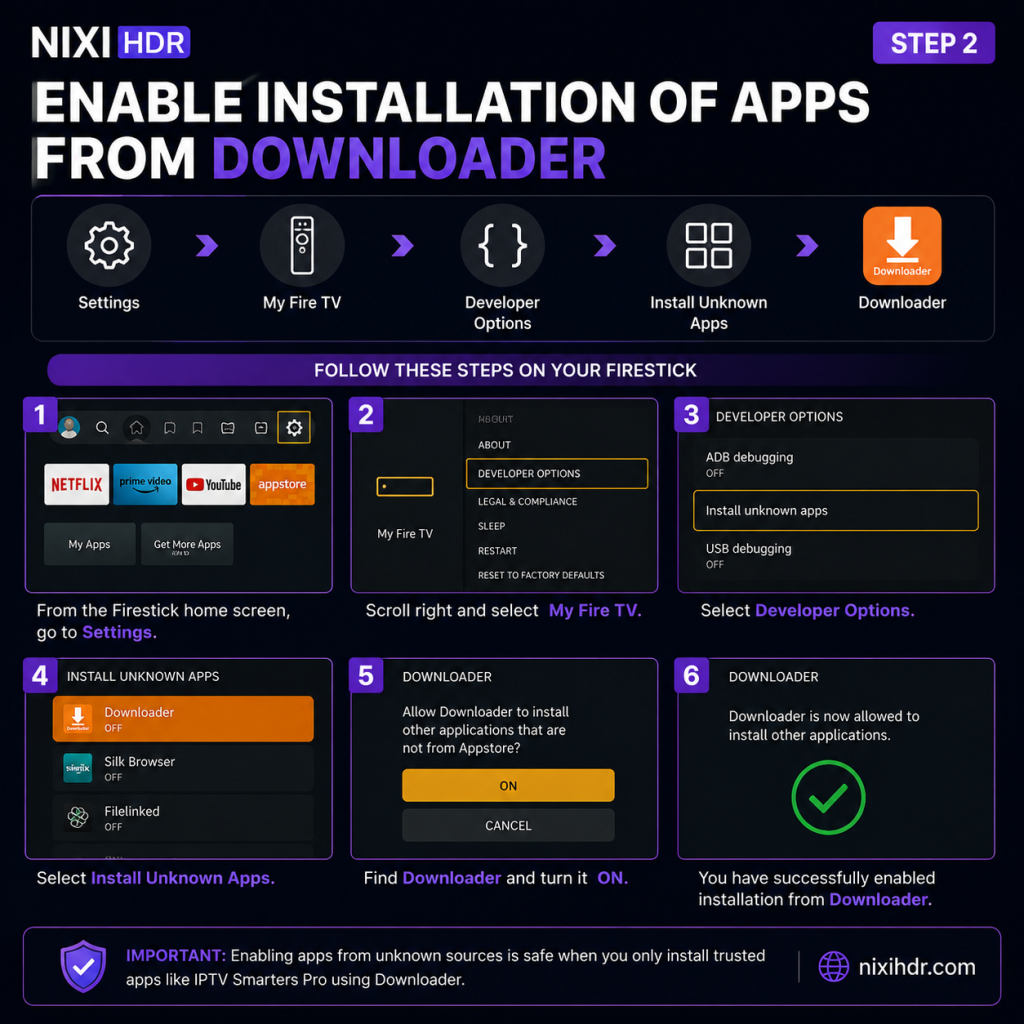
Step 2: Enable Installation of Apps from Downloader
Your Fire OS version may require permission for Downloader. Go to Settings > My Fire TV > Developer Options > Install Unknown Apps. Select Downloader and enable permission.
However, If you cannot see Developer Options, go to Settings > My Fire TV > About, highlight your Fire TV device name and press the Select/OK button seven times. Developer Options should then become available.
Step 3: Download IPTV Smarters Pro
Open the Downloader app. Use its browser to visit the official IPTV Smarters Pro website. Find the Android APK for your Fire TV device.
For this reason, avoid APK files from unknown websites. Use the official source whenever possible. This helps you avoid outdated or unsafe apps.
Step 4: Install IPTV Smarters Pro on Firestick
Once the APK downloads, the installation screen should appear. Select Install. Then, wait for the installation to finish.
When the confirmation appears, select Done to return to Downloader. Or, select Open to launch IPTV Smarters Pro..
Afterward, you can delete the APK file from Downloader. You no longer need it after the app is installed. This also frees up space on your Firestick.
Step 5: Open IPTV Smarters Pro and Accept the Terms
Next, open IPTV Smarters Pro on your Firestick. Follow the on-screen steps. Review the app’s terms before you continue.
The welcome screen may look different depending on your app version.
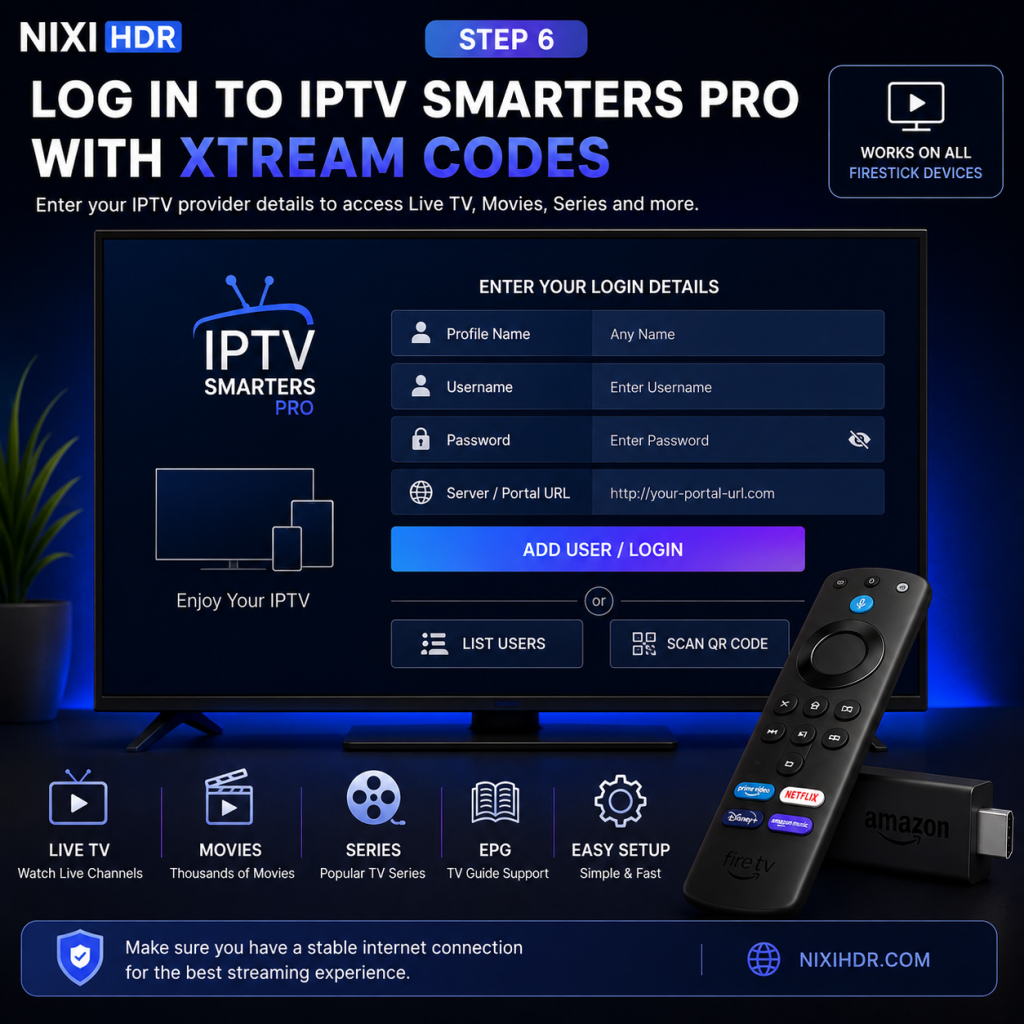
Step 6: Log In to IPTV Smarters Pro on Firestick With Xtream Codes
If your IPTV service gives you Xtream Codes details, choose Login with Xtream Codes API.
Enter your profile name, username, password, and server URL. Use the exact details given by your IPTV provider.
NIXIHDR Tip: Copy and paste the server URL when possible. This helps prevent typing errors. Even one wrong character can cause a login error.
Step 7: Set Up IPTV Smarters Pro on Firestick With an M3U Playlist
If you received an M3U playlist, open IPTV Smarters Pro. Then, choose the option to load a playlist or file/URL.
Enter a name for your playlist. Then, paste the M3U URL from your IPTV provider. Wait a moment while the app loads your content.
If the playlist does not load, double-check the M3U URL for missing characters or spaces and confirm that your subscription or playlist is still active.
NIXIHDR Tip: Xtream Codes API is often easier to enter on a Firestick because it separates the username, password and server URL into individual fields. Use whichever login method your IPTV provider officially supports.
How to Set Up EPG on IPTV Smarters Pro
First, EPG stands for Electronic Program Guide. It shows TV schedules inside the IPTV player. You can quickly see what is playing now and what comes next.
Additionally, EPG data may load automatically when you use Xtream Codes API. This depends on your IPTV service. If you use an M3U playlist, your provider may give you a separate EPG or XMLTV URL.
After adding your service, wait for the guide data to load. Large playlists may take longer. Therefore, give the app a few minutes to finish.
What to Do if the EPG Is Not Loading
First, if channels appear but the TV guide is empty, first refresh the EPG or playlist from within IPTV Smarters Pro and restart the app.
Next, check your Firestick internet connection. Also, make sure the date and time are correct. If you have a separate EPG URL, check that you entered it correctly.
Finally, if the EPG still does not appear, the issue may be with the guide data supplied by your IPTV service rather than the Firestick or IPTV Smarters Pro itself.
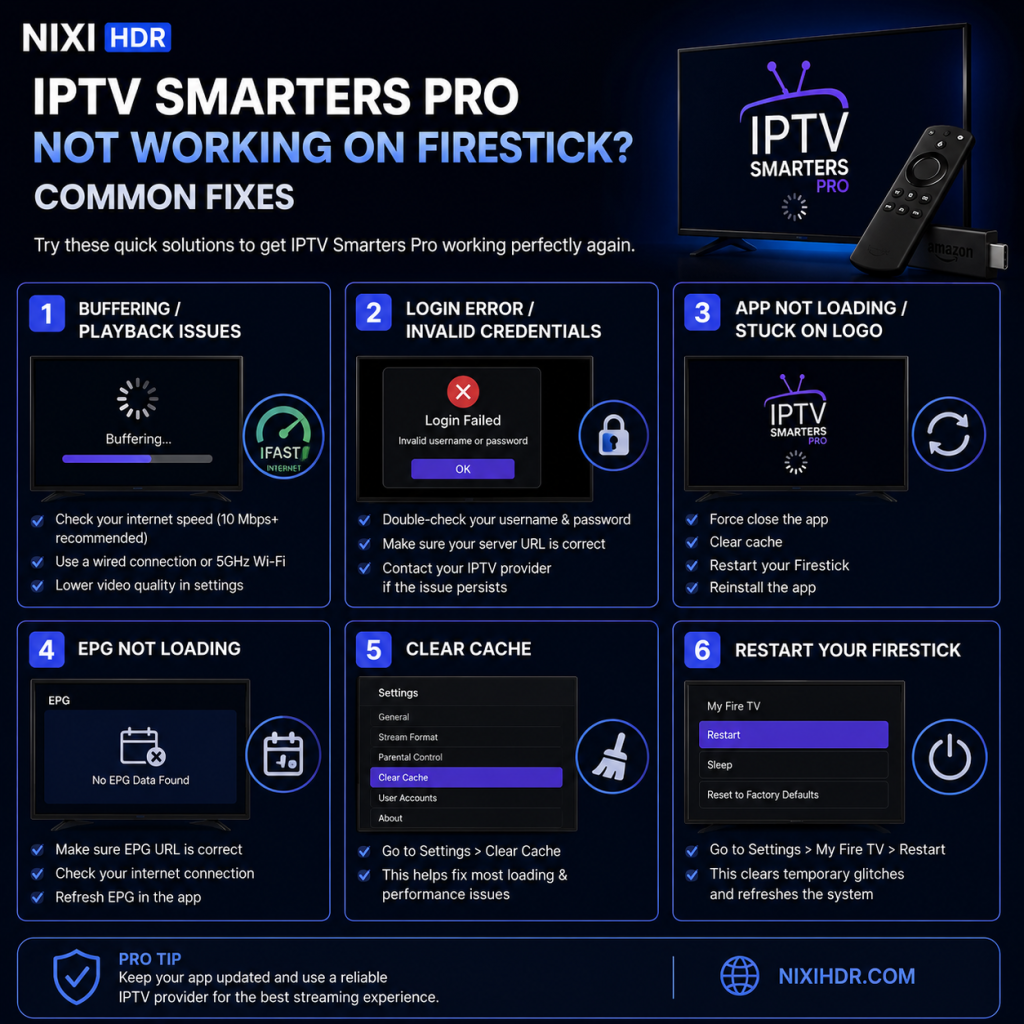
IPTV Smarters Pro Not Working on Firestick? Common Fixes
Even after a successful installation, you may occasionally experience login errors, buffering, channels not loading, or problems opening the app. Try the troubleshooting steps below before reinstalling everything.
Fix 1: IPTV Smarters Pro Login Failed or Invalid Details
First, If IPTV Smarters Pro displays a login error, first check your username, password, and server or portal URL. These details must match the information supplied by your IPTV provider exactly.
Therefore, check for accidental spaces, incorrect capitalization, or missing characters. If you are using Xtream Codes API, make sure the server URL includes the correct protocol and port if one was provided.
If the details are correct but login still fails, contact your IPTV provider to confirm that your account is active and that the server is available.
Fix 2: IPTV Smarters Pro Keeps Buffering on Firestick
Buffering can be caused by a slow or unstable internet connection, Wi-Fi interference, limited Firestick resources, or problems with the streaming source.
Restart your Firestick and router, close unnecessary background apps, and make sure your device has enough free storage. If possible, move the Firestick closer to your Wi-Fi router or use a compatible Ethernet adapter for a wired connection.
NIXIHDR Tip: Before changing IPTV Smarters Pro settings, test another streaming app on the same Firestick. If multiple apps are buffering, your internet connection or Wi-Fi is more likely to be the cause.
Fix 3: Channels or Movies Are Not Loading
Finally, if IPTV Smarters Pro opens normally but individual channels, movies, or series do not play, refresh your playlist or account data and restart the app.
Try several different channels or streams. If only one or two items fail while everything else works, the issue may be with those particular streams rather than your Firestick.
Finally, if no content loads, verify that your IPTV account is active and that your login or playlist information has not changed.
Fix 4: IPTV Smarters Pro App Crashes or Freezes
Finally, if the app freezes, closes unexpectedly, or becomes unresponsive, restart your Firestick first. You can also clear the app’s cache from Settings > Applications > Manage Installed Applications > IPTV Smarters Pro > Clear Cache.
Avoid selecting Clear Data unless necessary because doing so may remove saved login information and app settings.
Finally, if the problem continues, check whether a newer compatible version of IPTV Smarters Pro is available from its official source.
Fix 5: No Sound or Audio Out of Sync
Finally, if a stream has video but no sound, first test another channel to determine whether the issue affects the entire app or only one stream.
Restart the stream and check your Fire TV audio settings. Audio compatibility can vary between streams, so an issue affecting a single channel may originate from that stream rather than IPTV Smarters Pro.
How to Reduce IPTV Buffering on Firestick
Next, for smoother streaming, use a stable internet connection, keep sufficient free storage on your Firestick, restart the device periodically, and avoid running unnecessary apps in the background.
Wi-Fi signal strength also matters. A Firestick positioned behind a television can sometimes receive a weaker signal, so changing its position with the supplied HDMI extender may help.
For HD and 4K streaming, connection stability is just as important as headline internet speed. Other devices downloading large files or streaming simultaneously can also reduce the bandwidth available to your Firestick.
Frequently Asked Questions About IPTV Smarters Pro on Firestick
Is IPTV Smarters Pro free on Firestick?
IPTV Smarters Pro can be downloaded as an IPTV player, although available features and versions may vary. The app itself does not include TV channels or an IPTV subscription. You need compatible login credentials or playlist details from a service you are authorized to use.
Do I need an IPTV subscription to use IPTV Smarters Pro?
Yes. IPTV Smarters Pro is a player rather than a content provider. You need your own compatible IPTV service credentials, such as Xtream Codes API login details or an M3U playlist.
Can I use Xtream Codes on Firestick?
Yes. IPTV Smarters Pro supports Xtream Codes-style login details when they are provided by a compatible IPTV service. You normally enter your username, password, and server URL inside the app.
Why is IPTV Smarters Pro buffering on my Firestick?
Buffering can result from an unstable internet connection, weak Wi-Fi, limited device resources, network congestion, or problems with an individual stream. Restarting your Firestick and router and testing other streaming apps can help identify the cause.
Can I install IPTV Smarters Pro on other devices?
IPTV Smarters Pro is available for multiple compatible platforms. The exact installation process differs between Fire TV, Android TV, smartphones, tablets, computers, and Smart TVs.
Final Thoughts: IPTV Smarters Pro on Firestick
Installing IPTV Smarters Pro on Firestick gives you a convenient way to access compatible IPTV services from your television. Once the player is installed, you can sign in using the login method supported by your IPTV provider, configure your EPG, and adjust your Firestick for smoother streaming.
If you experience problems, start with the simple fixes covered above: verify your login details, restart your Firestick and router, check your internet connection, clear the app cache, and refresh your playlist or EPG.
NIXIHDR will continue publishing practical IPTV setup guides, Firestick tutorials, troubleshooting tips, and streaming information to help users get their devices configured correctly.
Related Guide: Having trouble with Xtream Codes? Read our complete Xtream Codes IPTV Setup Guide for Firestick, Android TV, Smart TV, iPhone/iPad, and Windows.




Leave a Reply